
I'm so excited I finally finished a project with my new Silhouette Cameo. When I read that it could do projects as large as 10 feet long, I knew I had to make something big! I was slightly apprehensive about doing something so large for my "first" project. "Maybe I should start small," my inner rational voice said. However, I told her to shut up and I decided to throw caution to the wind. Ha!
My father needed some signage for his business, and I was all too happy to volunteer my services. The sign is about 4 feet wide. It's just a simple sign, but totally effective in my opinion. We hung it on an old swing set! Pretty cool, I think. The Silhouette cut the vinyl so beautifully. OK, I had one tiny issue on the first long vinyl piece. It stopped cutting on the very last "s" in the word transmissions. So I had just half of an "s" at the end. I figured it was just a fluke. It didn't happen second time around on the exact same graphic. I can't complain. I'm a novice after all. I just used an exacto blade to finish it off and it was fine.
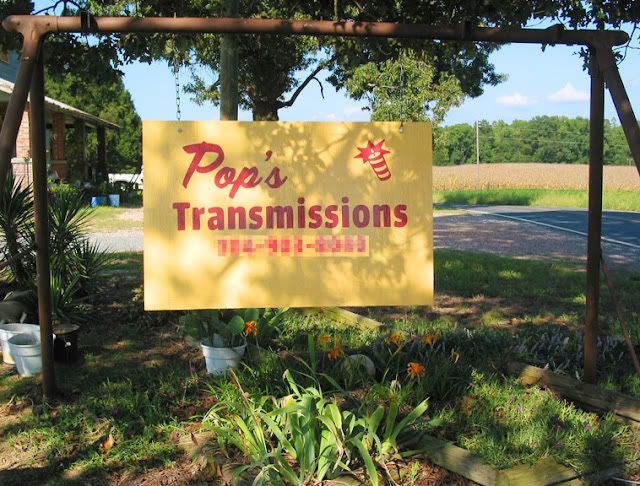
Anyway, here's the photo of the finished piece. It's also looks exactly the same on the other side. I figured we needed to make it visible from both sides for passers-by. Sorry for the picture quality. The light was getting low as we didn't finish the sign until late afternoon. Not to mention the sign is placed under a huge tree. I just had to take a picture anyway. I blurred out the phone number for "safety." It doesn't really look like that, ha! I just know I'll have a blast with my Cameo. What can't the Silhouette Cameo do?

I can't wait to use this machine for other projects. T-shirts are my next project (also for my dad). I plan to airbrush them with stencils I make with the Silhouette. That way he can be a walking advertisement. Then I'm going to apply vinyl branding on his truck too! All his idea of course. I'm not crazy or anything.
My father needed some signage for his business, and I was all too happy to volunteer my services. The sign is about 4 feet wide. It's just a simple sign, but totally effective in my opinion. We hung it on an old swing set! Pretty cool, I think. The Silhouette cut the vinyl so beautifully. OK, I had one tiny issue on the first long vinyl piece. It stopped cutting on the very last "s" in the word transmissions. So I had just half of an "s" at the end. I figured it was just a fluke. It didn't happen second time around on the exact same graphic. I can't complain. I'm a novice after all. I just used an exacto blade to finish it off and it was fine.
Anyway, here's the photo of the finished piece. It's also looks exactly the same on the other side. I figured we needed to make it visible from both sides for passers-by. Sorry for the picture quality. The light was getting low as we didn't finish the sign until late afternoon. Not to mention the sign is placed under a huge tree. I just had to take a picture anyway. I blurred out the phone number for "safety." It doesn't really look like that, ha! I just know I'll have a blast with my Cameo. What can't the Silhouette Cameo do?
I can't wait to use this machine for other projects. T-shirts are my next project (also for my dad). I plan to airbrush them with stencils I make with the Silhouette. That way he can be a walking advertisement. Then I'm going to apply vinyl branding on his truck too! All his idea of course. I'm not crazy or anything.


